

Upload, Publish, and Manage Master Templates in Deck
Updated a few minutes ago
Organizations use presentation templates to maintain consistent branding, layouts, and formatting across PowerPoint presentations. Deck enables administrators to centrally upload, manage, and publish templates for users to access directly from the Templates menu.
This article covers the Master Templates workflow, including accessing the template management area, uploading and publishing templates, and configuring their display in the Templates menu.
Access Master Templates
Before managing templates, open the Master Templates section in Deck Settings.
- 1. Go to the Deck tab.
- 2. Select Other > Settings.
- 3. In the Settings window, select the Master Templates tab.
The Master Templates section opens, allowing you to upload and manage presentation templates.
Upload a Master Template
Add an existing PowerPoint template to Deck and configure how it appears in the Templates menu.
- 1. Open the Master Templates tab in Deck Settings.
- 2. Under Template Path, select the Folder icon, choose the required template file, and select Open.
- 3. Enter the name to display in the Templates menu under Template Display Name.
- 4. Set the Thumbnail Colour:
- Select a colour to use as the thumbnail background.
- Leave the default setting to display a preview of the template’s first slide.
- 5. Select Install.
The template is added to the Master Templates list with a status such as Locally Installed or Ready to be Published.
Tip — Installing a template does not make it available to users. Select Publish to make the template available in the Templates menu.
Publish a Master Template
Publish an installed template to make it available to users through the Templates menu.
- 1. Locate the installed template in the Master Templates list.
- 2. Select the checkbox next to the required template.
- 3. Select Publish.
- 4. Verify that the template status changes to Published.
The template is now available to users in the Templates menu.
Use a Published Template
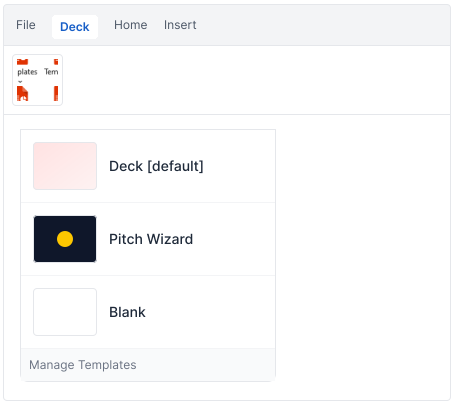
Once published, templates are available to users through the Templates menu in the Deck tab. Users can identify a template by its display name and thumbnail and apply it directly in PowerPoint.
- 1. Go to the Deck tab and select Presentation > Templates.
- 2. Browse the available templates using the displayed thumbnails and names.
- 3. Select the required template.
- 4. Deck opens a presentation using the selected template.
The selected template’s layouts, design, and formatting are applied to the new presentation.
