

Converting Presentations with Deck Converter
Updated a few minutes ago
Deck Converter enables users to convert slides and entire presentations from one brand or template to another. It provides a faster and more comprehensive alternative to manually updating individual formatting elements, ensuring consistent design across multiple slides.
Deck Converter simplifies the process by allowing users to:
- Convert an entire presentation using an available template or another open PowerPoint presentation as a reference.
- Use Conversion Tools to apply specific formatting changes without converting the entire presentation.
Convert a Presentation Using an Available Template
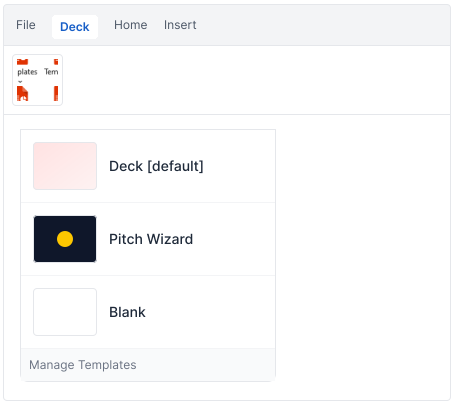
Use Deck Converter to apply an available brand template to an existing presentation without manually reformatting each slide. The original content is retained while the selected template’s styling and formatting are applied.
- 1.Go to the Deck tab in the PowerPoint ribbon.
- 2.In the File & Setup group, select the Deck Converter dropdown to view available templates.
- 3.Select the template you want to apply.
- 4.In the Save As window, enter a new file name if required and select Save.
- 5.Deck creates a new presentation with the selected template while retaining the original content.
Important — The conversion creates a new PowerPoint presentation, while the original presentation remains unchanged. The content and placeholders are transferred to the selected template and adapted to its layout. In some instances, content may overlap with other elements and require manual adjustment.
Convert to Another Presentation
Deck Converter allows users to apply the formatting and visual style of another open PowerPoint presentation to the current presentation. This option is useful when an existing presentation serves as the formatting reference instead of an available brand template.
- 1.In the Deck tab, go to File & Setup > Deck Converter and select Convert to Another Presentation.
- 2.In the Deck Converter pane, select the open presentation whose formatting and style you want to apply.
- 3. When prompted, specify the file name and select Save.
- 4.Deck creates a new presentation using the selected presentation’s formatting and style.
Important — Keep both PowerPoint presentations open—the presentation to be converted and the presentation that will serve as the formatting reference.
Conversion Tools
Conversion Tools enable users to apply targeted colour changes without converting an entire presentation. Changes can be applied to selected elements or applicable elements across a slide.
- Font: Change font colours.
- Shape Fill: Change shape fill colours.
- Shape Outline: Change shape outline colours.
To access Conversion Tools, go to the Deck tab, select Deck Converter, and choose Conversion Tools. The Conversion Tools pane opens on the right.
Tip — The changes applied depend on the selected content. Select an individual element to modify it, or select a slide to update applicable elements across the slide.
